Objectives
This lab will focus on how to effectively clean data in excel using the available functions.
Dataset cleaning
Cleaning data is a very important task for a data analyst. There are some functions in Excel you can use to support this process.
Some data when imported into Excel brings with it old formatting from the source system, this may be as symbols, concatenation of strings or duplicate values. It is essential to prepare the data for analysis and thus limit the issues that may arise
The image below shows each piece of data has a symbol prefixing the actual value.
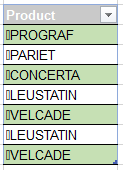
In this example it is important to strip off the leading paragraph symbol.
The Clean() function will remove any of the non-printable symbols that you may get in your data when it is imported from various sources.
Open the following file:
Using the clean() formula as below enter the formula into cell B14:
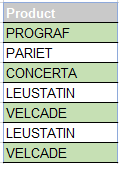
=clean(B4)Copy the formula down to B20, click the menu button that appears beside the copied cells and choose fill without formatting to ensure just the formula is copied and not the coloured cell format.
Text to columns
Another common data problem is the concatenation of strings with a delimiter or separator in between each value. This a simple text extract file which can drastically shrink file size of a data set but is impossible to work with in terms of data analysis.
In the worksheet highlight the data in cells J6:J11 and then on the data ribbon click the button Text to Columns.
This tool allows us to change text strings into separate columns easier to use. In this case each value is separated by a delimiter the underscore, choose the delimited option and click next.
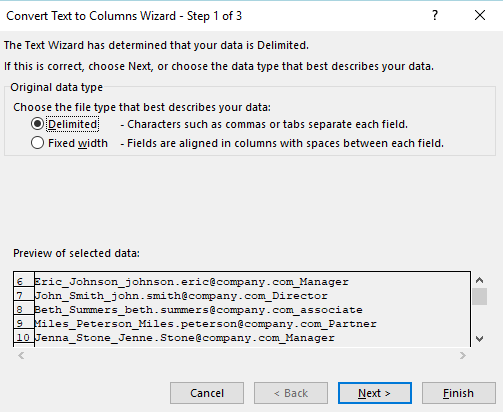
The default delimiter is the Tab and there are other options such as comma or semi colon. Check Other and type in an underscore.
The preview function is very useful to see if your data looks correct once separated.
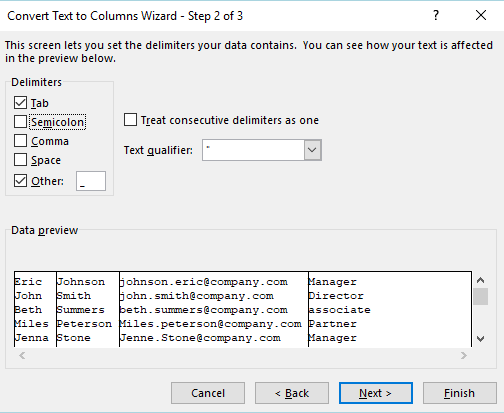
click finish (or click next and ensure the data types are set as expected).
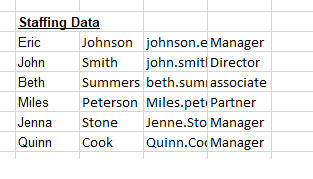
Trim
Open the sheet named Trim(), here we have rows of data that describe products. There are extra spaces between many of the letters and numbers in the data.
The trim function will strip extra spaces from text, leaving only single spaces between words and no space characters at the start or end of text.
=trim(B5)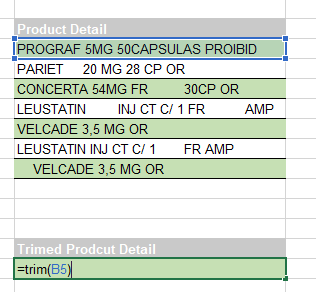
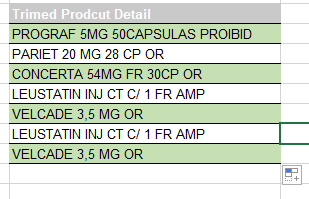
Hit enter. The contents should now show without extra spaces.
Drag down the formula so it is copied for each of the cells from B16 to B22
Substitute Values
It is also possible to use the trim function with the substitution function.
In this data there is a comma separating some of the numbers where we would prefer a decimal point. There are also the extra spaces to deal with.
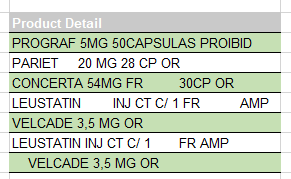
=TRIM(Substitute(B4,",","."))All text values must be in quotes so the comma is in quotes and the decimal point.
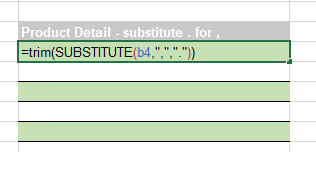
Copy the formula to the end of the data.
This task could of been done using the find and replace tool in excel however it is always best practice to keep the raw data in its original form. It allows you to look back at the original data to check, especially if you conduct a lot of clean up.
Values
Substitute
Using the substitute function again you will create a new list of data for the years 2015 2016.
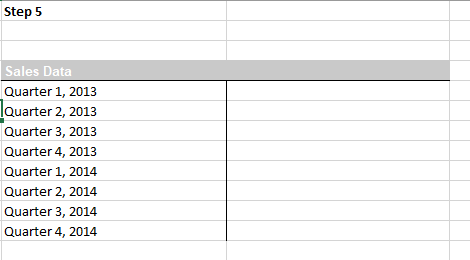
=substitute(G5,"2013","2015")This formula will work for the first four lines of data so copy it down, then edit the formula so that 2014 changes to 2016.
Text
The next issue in raw data is also common when pulling data from other sources and then combining the data in an excel sheet.
Open the Values sheet and you will see Excel marks with a green triangle each value in the table.
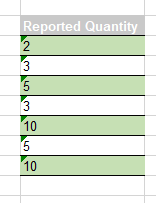
When you click on the cell the error sign pops up. By clicking on the arrow we can see that this number is actually stored as text.
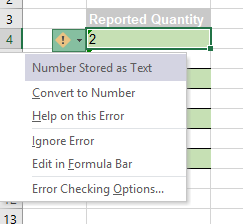
In the arrow menu we have a function to convert the cells to numbers one by one. If a number is stored as text we cannot use some of the most common functions such as sum, or average. Consequently, the sum function in cell B11 returns zero.
There are two methods for converting these values.
Using the value function:
=value(B4)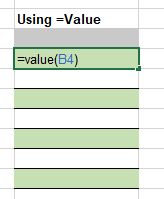
Copy the formula down and the errors have been removed and the values are now numbers. The sum function should now work.
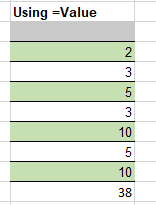
Using text to columns:
Select the raw data, click text to column from the data ribbon, choose delimited and click next. Uncheck Tab and other as we are only dealing with one piece of data. Click next. The text to columns function knows that the data is numeric. General converts numeric values to numbers, date values to dates and all remaining values to text. Choose the destination as our table below.
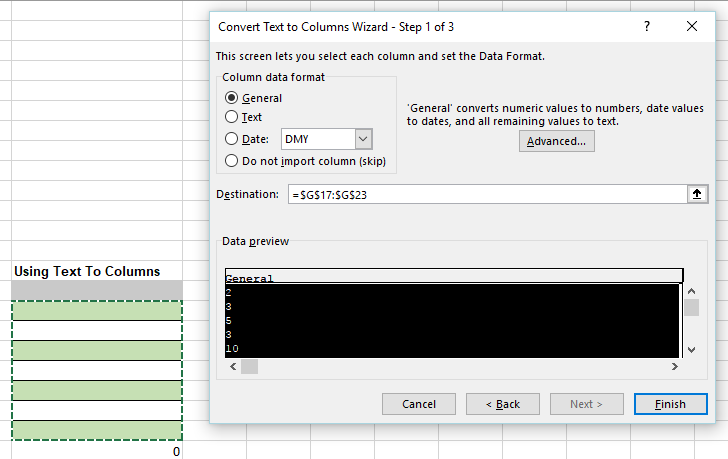
Now the values are numeric and the sum function works.